Manual Account Registration
Manual account registration allows organizations to onboard customers either directly through the admin panel or via self-registration with admin approval. This ensures flexibility while maintaining strict control over payments and resource usage. Manual payment mode supports two registration workflows:
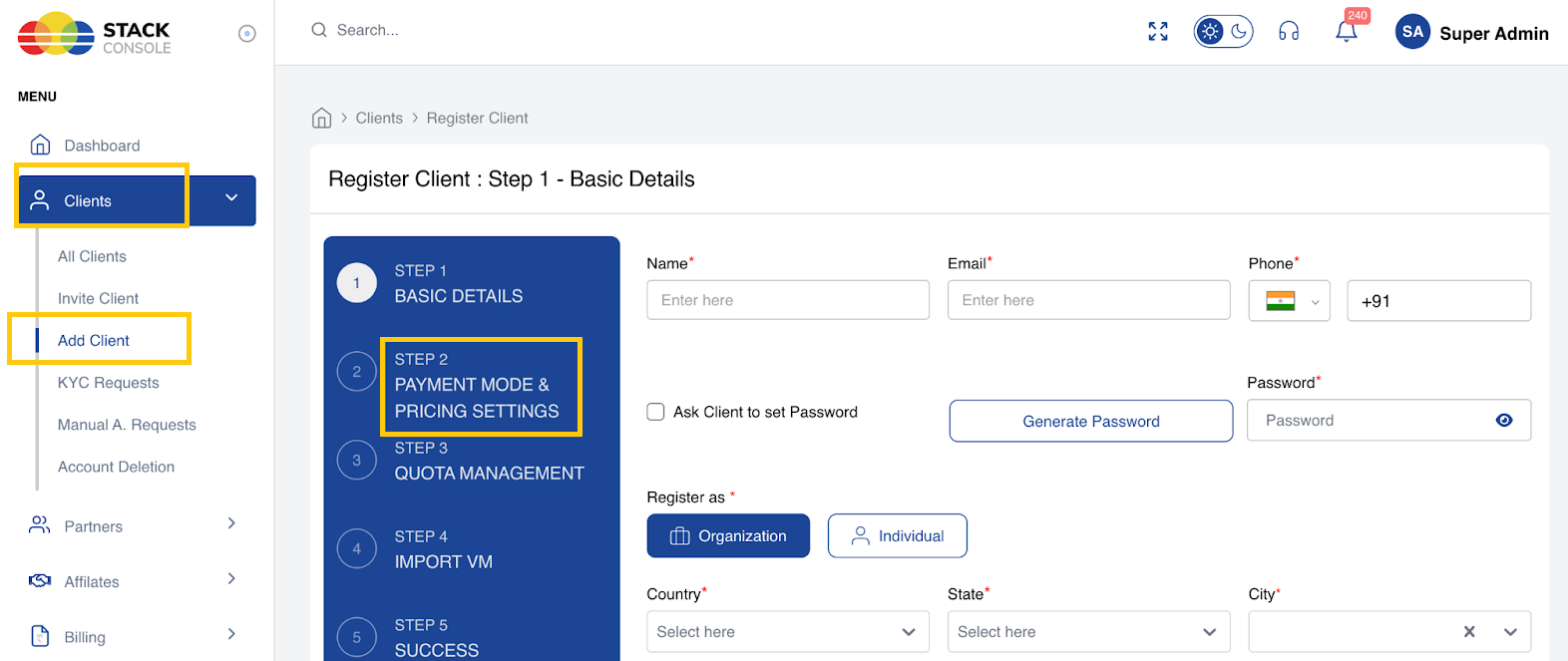
1. Admin-Only Registration
- Admin manually registers customer accounts via the admin panel.
- Upon registration, the system automatically activates the customer account.
- Customers can start creating resources immediately.
2. Self-Registration with Admin Approval
- We can enable Manual Payment mode for customers during registration.
- Customers can self-register using the Manual Payment option by selecting the the Manual as payment mode.
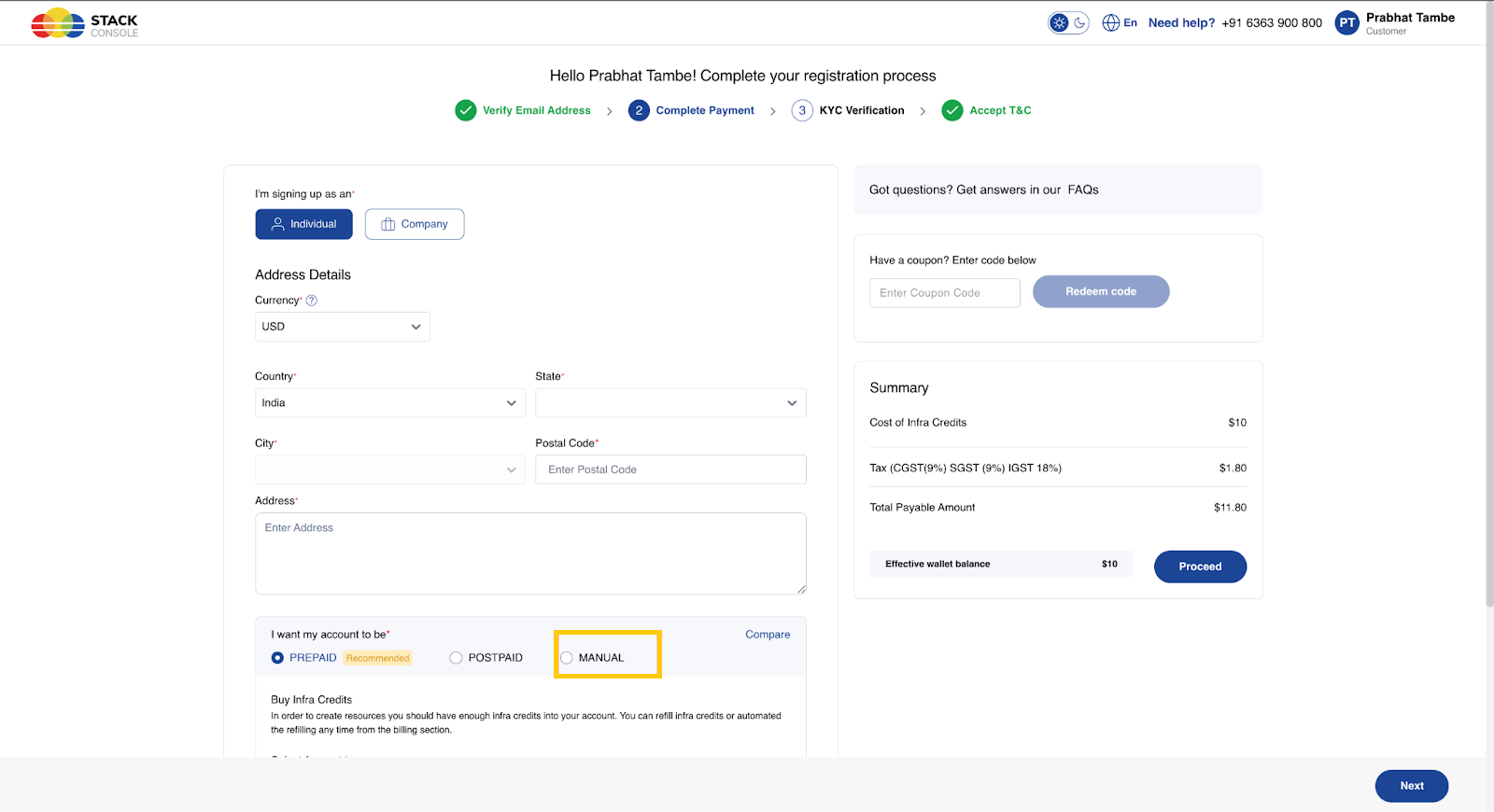
- Review all entered details and click Next to save. After registration, the registration request is sent to the admin for verification.
- From the left-hand menu, expand the Clients drop-down and click on Manual Account Requests to open the registration requests.
- Admin can:
- Approve the request: the account is activated.
- Reject the request: the account remains inactive.
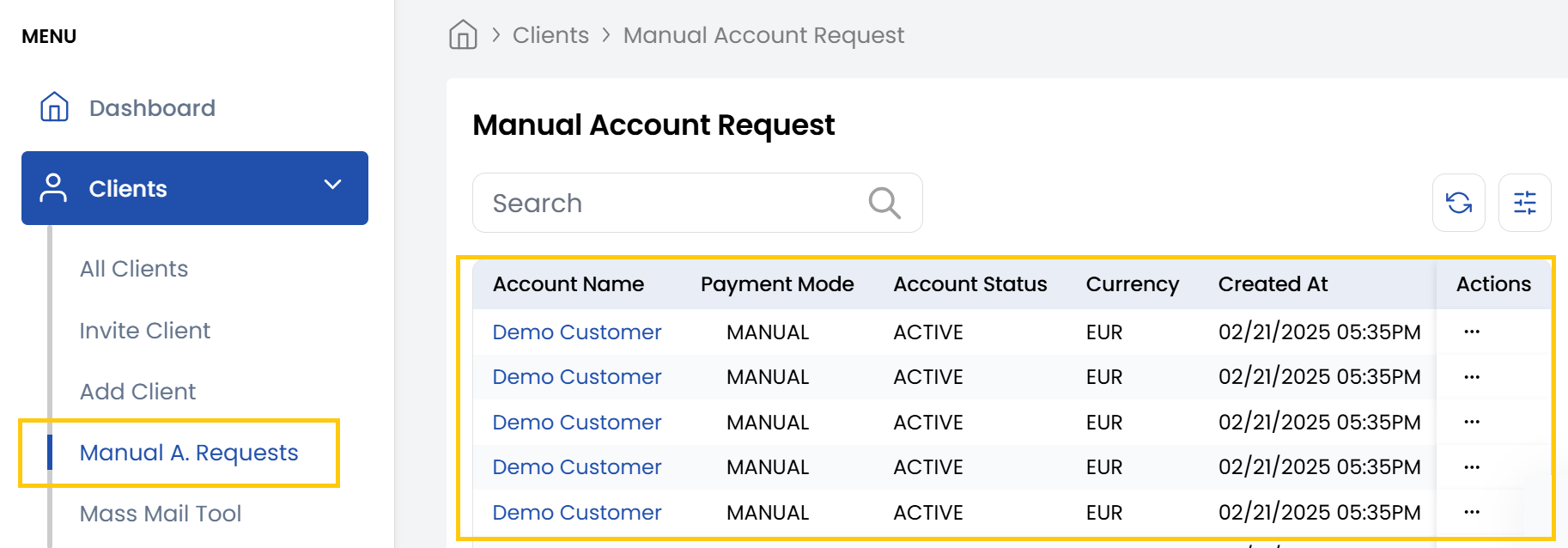
- Only after admin approval customers are allowed to create resources.
Threshold Limit (Spending Cap)
- During account approval, the admin can assign a Threshold Limit to control maximum usage.
- When a customer’s resource usage reaches the defined threshold, the system:
- Immediately generates an invoice, even if the billing cycle hasn’t ended.
- This helps prevent exploitation by:
- Detecting unusually high usage early.
- Avoiding cases where users consume excessive resources and avoid payment later.
Billing and Payment Process
Resource Usage
- Customers create resources as per their service plans.
- Usage is tracked, and invoices are generated:
- Either at the end of the billing cycle, or
- Immediately, if the Threshold Limit is reached.
External Payment by Customer
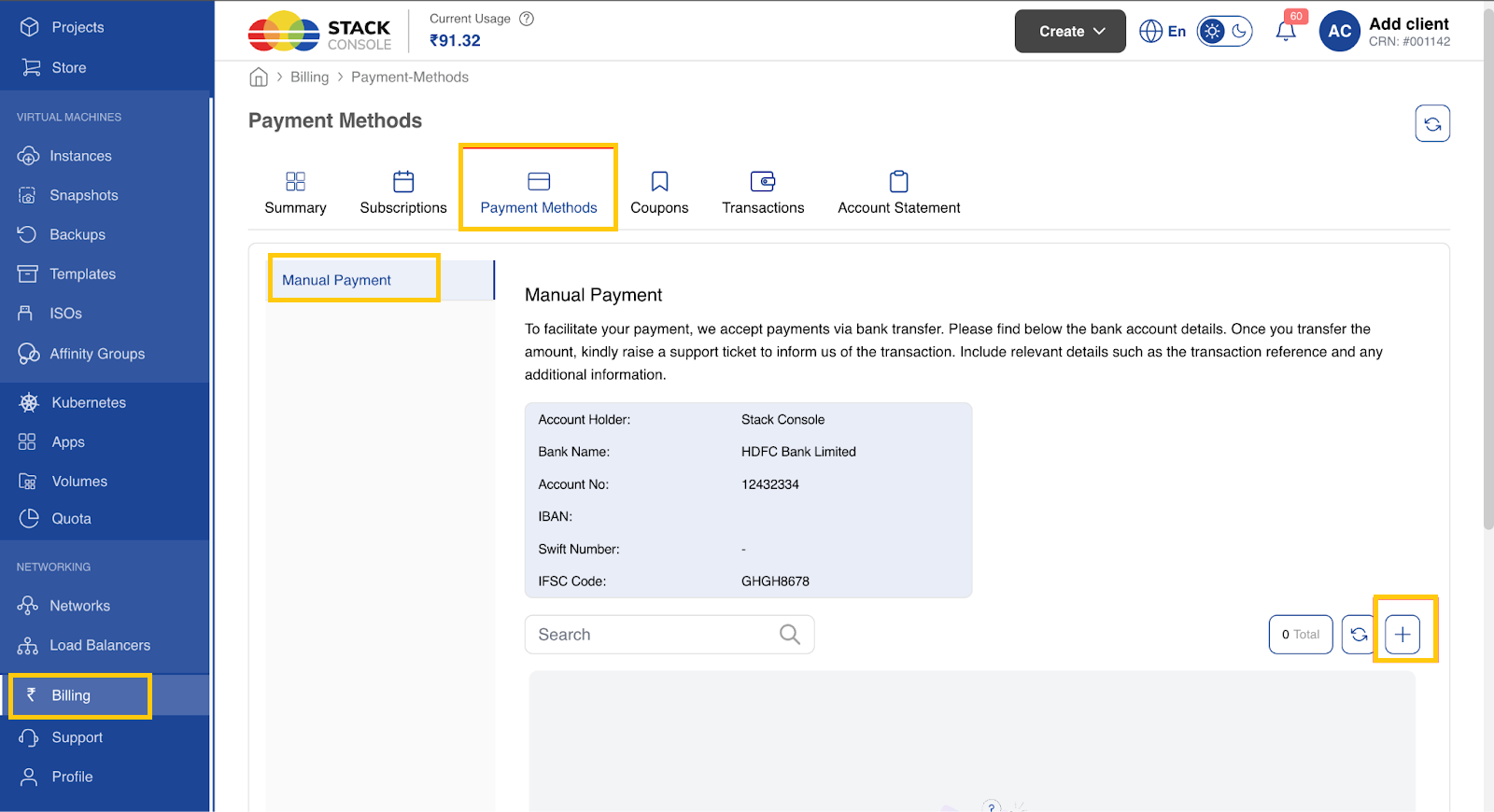
- Customers make payments outside the CMP platform (e.g., via bank transfer, cheque, or cash).
- They must then upload proof of payment using the Manual Payment Submission option in CMP.
Manual Payment Requests
- Admin receives a notification of the payment proof submission.
- Admin must verify the payment manually with external records or bank statements.
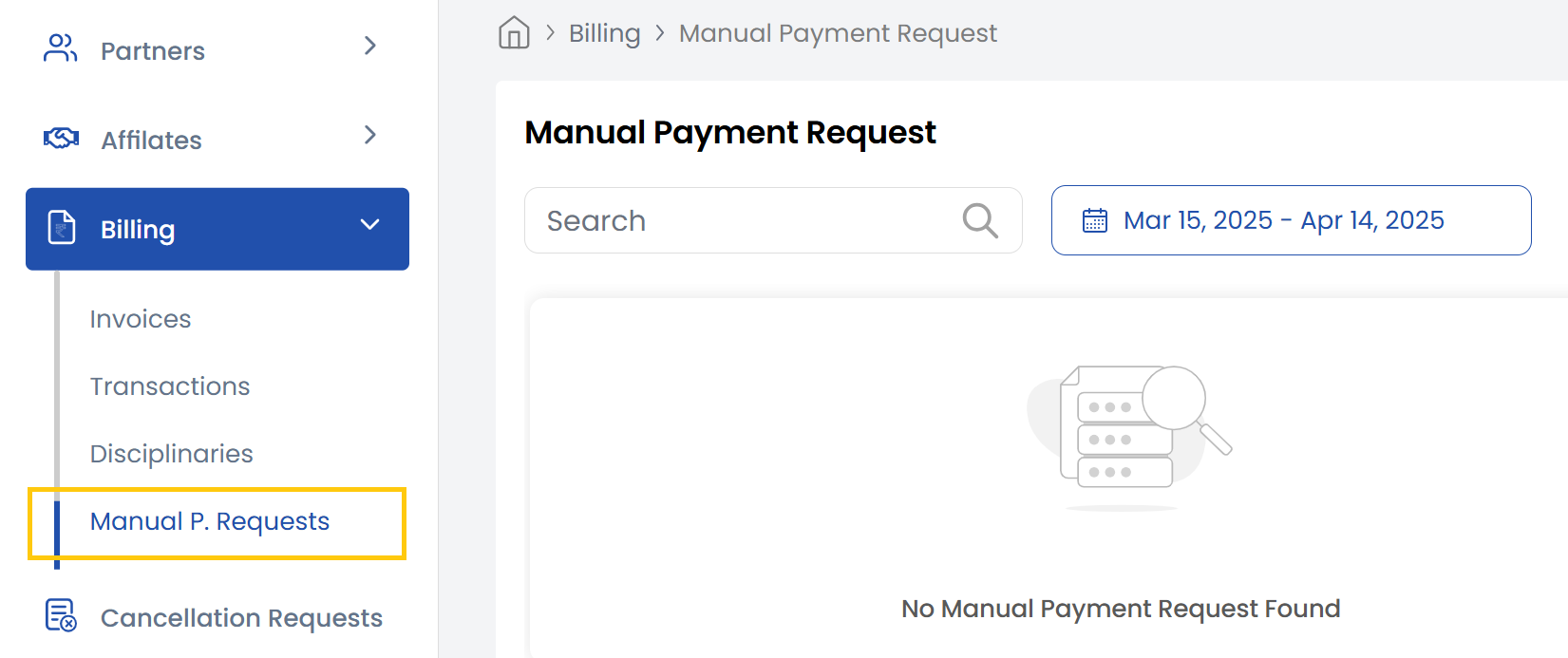
- From the left-hand menu, navigate to the Billing section. Click Manual Payment Requests to display a list of payment requests.
- Based on verification, the admin can Approve the payment, or Reject the payment.
- Once approved, the admin must manually mark the corresponding invoice(s) as Paid in the CMP system. This step is currently not automated.
Conclusion
Manual account registration with admin approval ensures tighter control over customer onboarding and resource usage. By setting threshold limits and requiring proof of manual payments, admins can minimize financial risk, prevent abuse, and maintain accurate billing records within the CMP system.